
**The Perils of Spilling Liquid on Laptops: A Cautionary Tale**
Accidents happen, and when it comes to technology, they often come with costly consequences. On a seemingly ordinary Friday, a phone call with a friend turned into a disaster when an entire mug of tea was accidentally knocked over a laptop. In the face of this unfortunate incident, the immediate instinct was to act swiftly, shutting down the device, cleaning it, and employing a dehumidifier to address the situation. But how should one really respond to such an accident?
### Immediate Steps to Take After a Spill
The first step after a spill is crucial: immediately turn off the laptop to prevent further damage. Powering it down halts the flow of electricity, potentially saving components from short-circuiting due to the presence of liquid. Once the laptop is off, it should be cleaned up as best as possible. Here are some steps to consider:
1. **Shut Down the Device**: Disconnect the power and turn off the laptop.
2. **Remove Peripherals**: Unplug any external devices, such as USB drives, keyboards, or mice.
3. **Drain Liquid**: If liquid spills onto the keyboard, gently tilt the laptop to allow excess liquid to drain.
4. **Dry the Surface**: Using a kitchen towel or microfiber cloth, dab the affected area to absorb moisture.
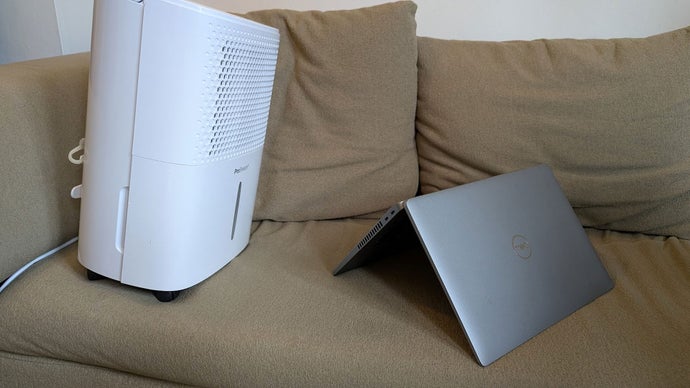
5. **Air Dry and Dehumidify**: Leave the laptop splayed open to air dry, possibly in front of a dehumidifier for added moisture removal.
It is advisable to wait at least 24 hours—or longer, if possible—before attempting to power it back on. This precaution helps ensure that all internal components have dried completely.
### The Ominous Waiting Period
After taking these steps, there’s an agonizing period of uncertainty, akin to a modern-day Schrödinger’s cat scenario—until the laptop is turned on, it could either be fine or completely ruined. After a weekend of anxious waiting, the moment comes to power it up. Initial success brings a mix of relief and victory; however, problems soon arise: sticky keys and malfunctioning WiFi bring a quick reminder of the potential lasting damage from the initial spill.
### Troubleshooting and Recovery
The fun doesn’t stop at just getting the laptop to boot. Issues can arise that require creative workarounds. In this scenario, the keys malfunctioned, but the USB keyboard and mouse still worked, allowing access albeit with some frustration. However, connectivity issues soon develop, leading to further complications.
If faced with similar problems, consider the following steps:
– **External Keyboards**: If keys are sticky or unresponsive, using an external keyboard can help circumvent the hassle while waiting for repairs or replacements.
– **Network Troubleshooting**: If the WiFi adapter fails, connection can often be restored through troubleshooting steps—resetting the router, checking drivers, or, in extreme cases, seeking professional IT support.
### Additional Reflections on Tech Mishaps
This incident not only serves as a personal cautionary tale but resonates with many who have experienced mishaps with technology. Whether it’s spilled drinks, dropped devices, or power failures, the stories of ruined PCs are common. It’s essential to learn from these episodes—keeping drinks away from electronics, handling cables carefully, and ensuring backups for important data can mitigate risks significantly.
### Conclusion
Accidents like spilling tea on a laptop are frustrating but also serve as valuable lessons. They highlight the importance of proper care for electronic devices and encourage us to share our misadventures—keeping humor alive in the face of despair. So next time you find yourself in a tech-related predicament, remember to take a deep breath, act quickly, and perhaps share your story with others to foster a sense of community over our collective clumsiness.