# Optimizing Pragmata for Steam Deck: A Comprehensive Guide
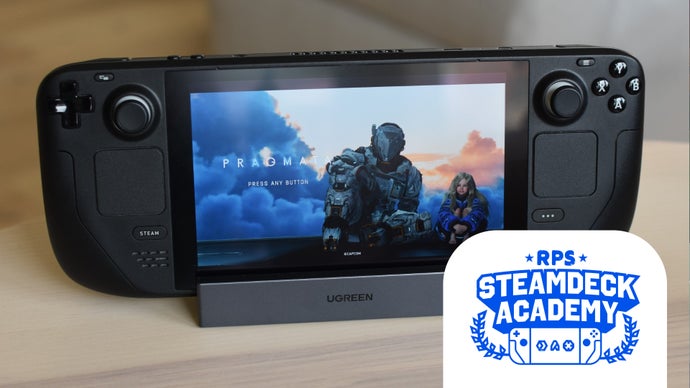
The gaming landscape continues to evolve, leading to the emergence of powerful platforms such as the Steam Deck. With titles like Capcom’s Pragmata pushing graphical boundaries, understanding how to optimize these games for the Steam Deck can significantly enhance the gaming experience. This article delves into how Pragmata performs on the Steam Deck, providing insights and settings to achieve the best results.
## Performance Overview
Pragmata showcases impressive visual fidelity, with ray-traced graphics that shine on high-end PCs. However, players on the Steam Deck—equipped with integrated graphics and shared RAM—need to make some adjustments for optimal performance. The game’s graphics may not fully translate to the Deck’s specifications, generally averaging around 30fps, but it remains playable without extensive control adjustments.
### Key Performance Metrics
– **Average Frame Rate**:
– Difficult sections: ~35fps
– Majority of scenes: 40-45fps
– Tight corridors: Up to 60fps
Despite occasional framerate dips, these metrics make Pragmata a viable option for handheld play, especially compared to other high-fidelity games.
## Control Scheme
The default control scheme aligns well with the Steam Deck’s ergonomics. Although personal preference might favor mouse controls for precision, the game is designed with gamepad-style controls in mind. The visual clarity on the 7-inch LCD is adequate, provided players use FSR 3 upscaling to enhance image quality without excessive fuzziness.
## Battery Life Considerations
One notable drawback of playing Pragmata on the Steam Deck is its substantial battery drain. At a brightness of 50% and with audio also at 50%, gameplay lasts about 1 hour and 20 minutes. Players using the Steam Deck OLED model can expect slightly better performance, though this title is not energy-efficient.
## Graphics Settings Optimization
To achieve the best performance on the Steam Deck while maintaining visual clarity, players are encouraged to tweak a few settings. Here’s a recommended configuration:
– **V-Sync**: Off
– **Ray Tracing**: Off
– **Path Tracing**: Off
– **Global Illumination Quality**: Low
– **Upscaling**: FSR 3 on Balanced
– **Dynamic Resolution**: Off
– **Frame Generation**: Off
– **Hair Quality**: Low
– **Texture Quality**: Low (0.5GB)
– **Texture Filtering**: High (ANISO x2)
– **Mesh Quality**: Medium
– **Shadow Quality**: Low
– **Shadow Cache**: On
– **Contact Shadows**: Off
– **Effects Quality**: Medium
– **Video Quality**: Full HD
– **Ambient Occlusion**: Off
– **Volumetric Lighting**: Medium
– **Bloom**: Off
– **Screen Space Reflections**: Off
– **Subsurface Scattering**: Off
– **Motion Blur**: Off
– **Lens Flare**: Off
– **Lens Distortion**: Off
– **Depth of Field**: Off
With these settings, players can expect to maintain a stable framerate, with the game offering a good balance between performance and visual quality.
## Conclusion
Playing Pragmata on the Steam Deck is a rewarding experience, provided adjustments are made to suit the hardware limitations. By following the recommended settings and recognizing the performance capabilities, players can enjoy Capcom’s sci-fi adventure while navigating the nuances of handheld gaming. Whether dealing with demanding scenes or engaging in exciting gameplay, the Steam Deck proves to be a competent platform for modern gaming.