This guide doubles as a salon, kind of…? Anyway, you read the title, and I know what you’re here for. In my **Rintama High Hair IDs** guide, I tell you how to fully customise your player, including how to get Hair IDs, layering, and how to change your style if you change your mind.
So, sit in front of my hypothetical salon mirror, and let’s cut (*hah!*) to the chase.
## Rintama High Hair IDs
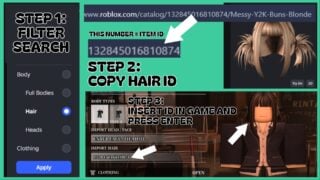
To source Hair IDs for your avatar, open the Roblox Marketplace, and set the filter to Hair. *(Press Body -> Hair)*. Or, type in a style you’re looking for in the search bar, and then use the filter to look for specific hairs that match your aesthetic. For example: Grunge, Scene, Fluffy, etc.
Whilst searching for a hair, disregard the colour of it, as Rintama will override the original colour with their presets. If you want a new hair colour, you need to reroll for one in-game. For now, you’re ONLY looking for length and style.
When you find a hair, click on it to open its marketplace listing. Now, look at the URL and find the numerical code.
Example: www.roblox.com/catalog/**NUMBERS**/item-name-will-appear-here.
The numbers after the *www.roblox.comcatalog/* are the Hair ID. Copy this, and then insert it into the Hair ID search bar in the customisation menu within Rintama High. Press Enter, and the game will quickly load the ID and show you your new hairstyle.
## Hair ID Preview
More of a visual learner? I’ll show you how importing Hair ID works in this section.
Note: The hair ID appears brown in-game as this is the pre-rolled hair colour I was assigned. Knowing this, I chose blonde hair to showcase how the game overrides the URL ID.
You can also see the Head/Face ID insert above this, which has the same ID mechanic. Simply find a face you like and insert the URL numerical code to apply it to your player. Under the Hair ID import, you can see the clothing tab, which again allows you to insert your own clothing IDs for tops and pants to fully customise your student.
—
## Frequently Asked Questions
### How many Hair IDs can I layer on one character?
The max is two.
### How can I change my character assets after creating them?
Enter the main game and open your Phone (icon in the top left). For clothes, press the Clothes App and insert new asset IDs, or for main customisation, press the Settings menu and press Customise Character.
### Do other IDs work the same as Hair IDs?
Yep! Customising your face, clothes, etc, all require the unique URL number sourced from the marketplace.
Fortunately, other customisable features won’t have their base colours overridden, unlike hair. So what you see is what you get.
### Does Hair with accessories work when imported?
The accessories will import, but their colour will be overridden with the hair colour that the game has assigned to you. So, they don’t look good. I suggest keeping the hair simple, and focusing on style and shape rather than accessories and colour when choosing an ID to copy.
—
## Get Your Style On
Now you know how Hair IDs work, and by proxy, other customisable IDs, start creating your character via [Roblox](https://www.roblox.com/games/131031240633619/Rintama-High).
Or, stick around and learn more before you play by reading our [Rintama High Fighting Styles](https://www.gamezebo.com/walkthroughs/rintama-high-fighting-styles/) guide.
### Downloads
### Related stories
– [Peroxide Roblox Hair Guide – How to Get Hair and Hair IDs](https://www.gamezebo.com/walkthroughs/peroxide-roblox-hair/)
– *Our Peroxide Roblox Hair guide contains all you need to know about changing your hair in the Roblox game based on Bleach!*
### Organisations
It seems you’ve stumbled upon my bio! I’m Sho, your local weeb. Off the clock I am typically watching anime, reading manga, or doing art. I think it’s safe to say that all my unpaid thoughts revolve around anime… That said, watch One Piece! (Or don’t, I’m just a biography.)